> ## Documentation Index
> Fetch the complete documentation index at: https://docs.wasabihosting.com/llms.txt
> Use this file to discover all available pages before exploring further.
# Wasabi Hosting - Minecraft Version Changer
> Learn how to use our Minecraft version changer
At Wasabi Hosting, we always ensure that our server owners are equipped with all the necessary resources and tools they need to modify their servers according to their imagination. To continue this commitment, we are happy to announce our new **Version Changer** feature, integrated right into your game panel. This tool allows you to change the version or software of your Minecraft server according to your requirements. Some of the major software available in our Version Changer include **Vanilla**, **Paper**, **Spigot**, **Forge**, and more.
This guide will act as a resource for our clients to get familiar with our Version Changer and use it to meet their server modification needs. Whether you're a server owner looking to explore our new **Version Changer** or understand its functionalities, this guide is here to help.
## Types of Minecraft Versions
There are multiple Minecraft versions available, each offering unique features. Some add new gameplay functionalities, while others overhaul entire game concepts. Here are a few of the software/versions included in our Version Changer:
### Vanilla
Vanilla Minecraft is one of the oldest versions, released by Mojang itself. It introduces the basic concepts of Minecraft to the server, allowing owners to run an unmodified, standard version of Minecraft without additional features.
### Forge
Forge is known for its ability to introduce a wide range of mods, allowing players to add different gameplay features, new mobs, and items. It's perfect for server owners looking to introduce custom concepts and enhancements.
### Paper
Paper is recognized for its high level of customization and ease of player management. It is lightweight and allows server owners to create highly configurable servers with increased player capacity.
## How to Change Minecraft Server Version
1. Navigate to the [Wasabi Hosting Game Panel](https://panel.wasabihosting.com/) and log in with your credentials.
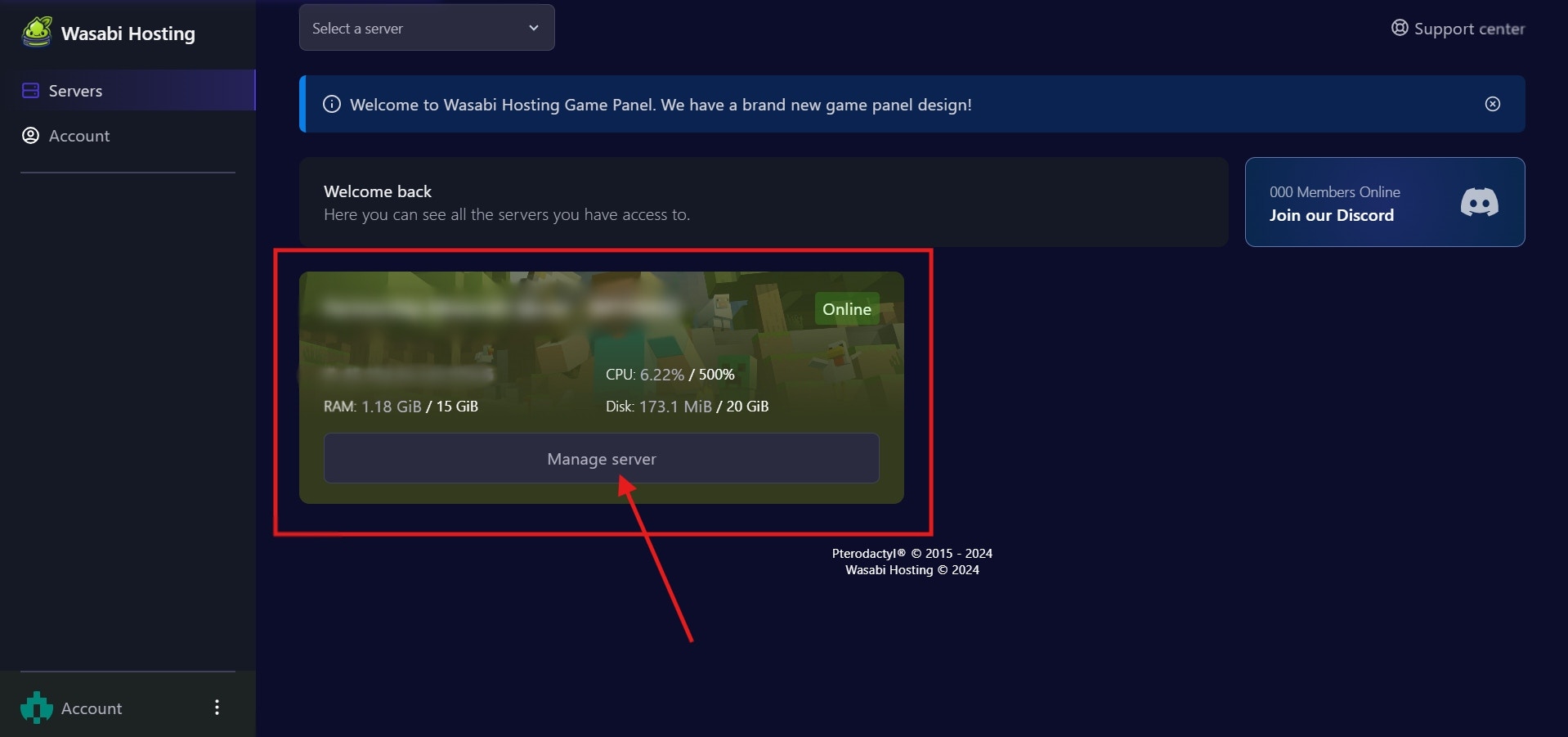
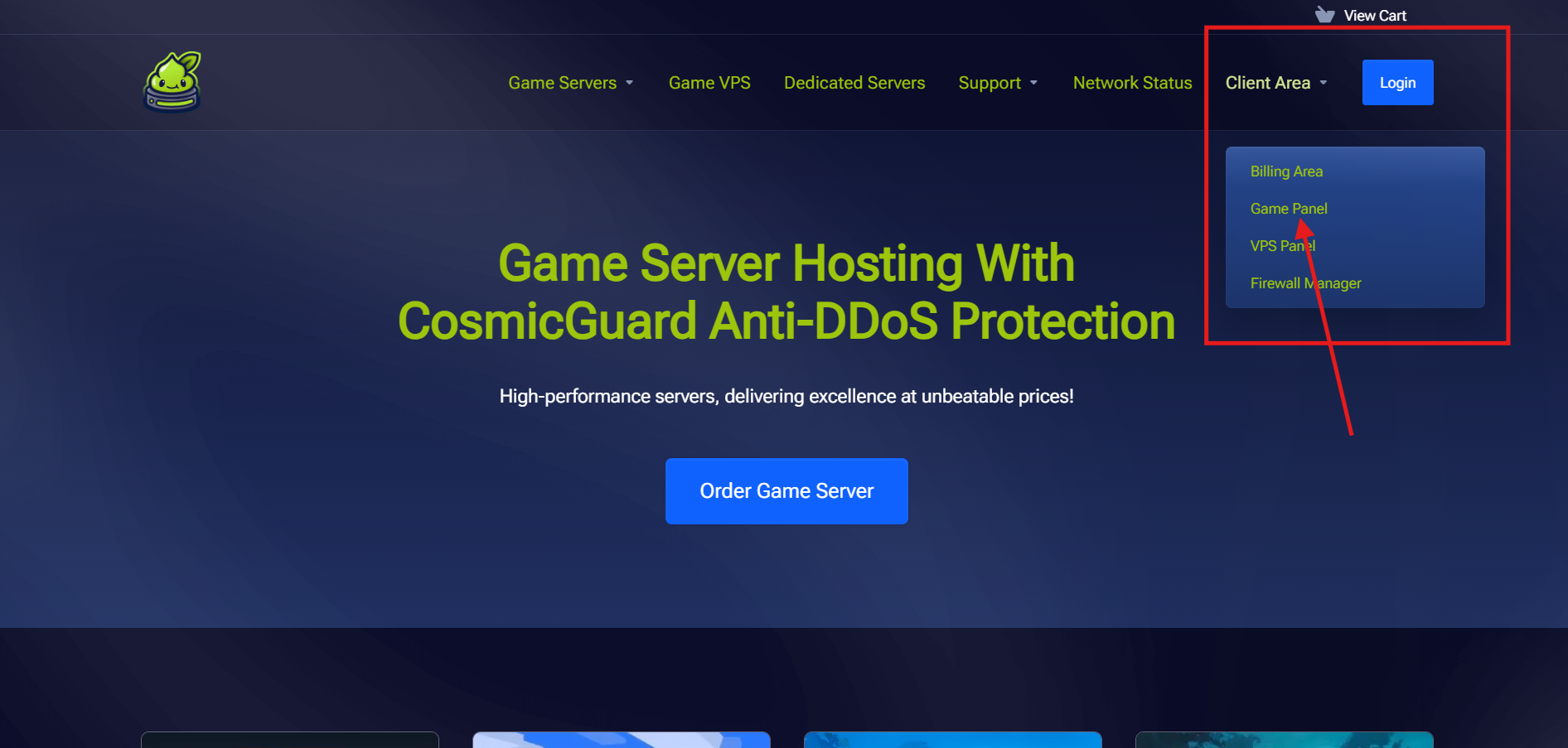 2. From the dashboard, select the Minecraft server you wish to modify from your list of active services.
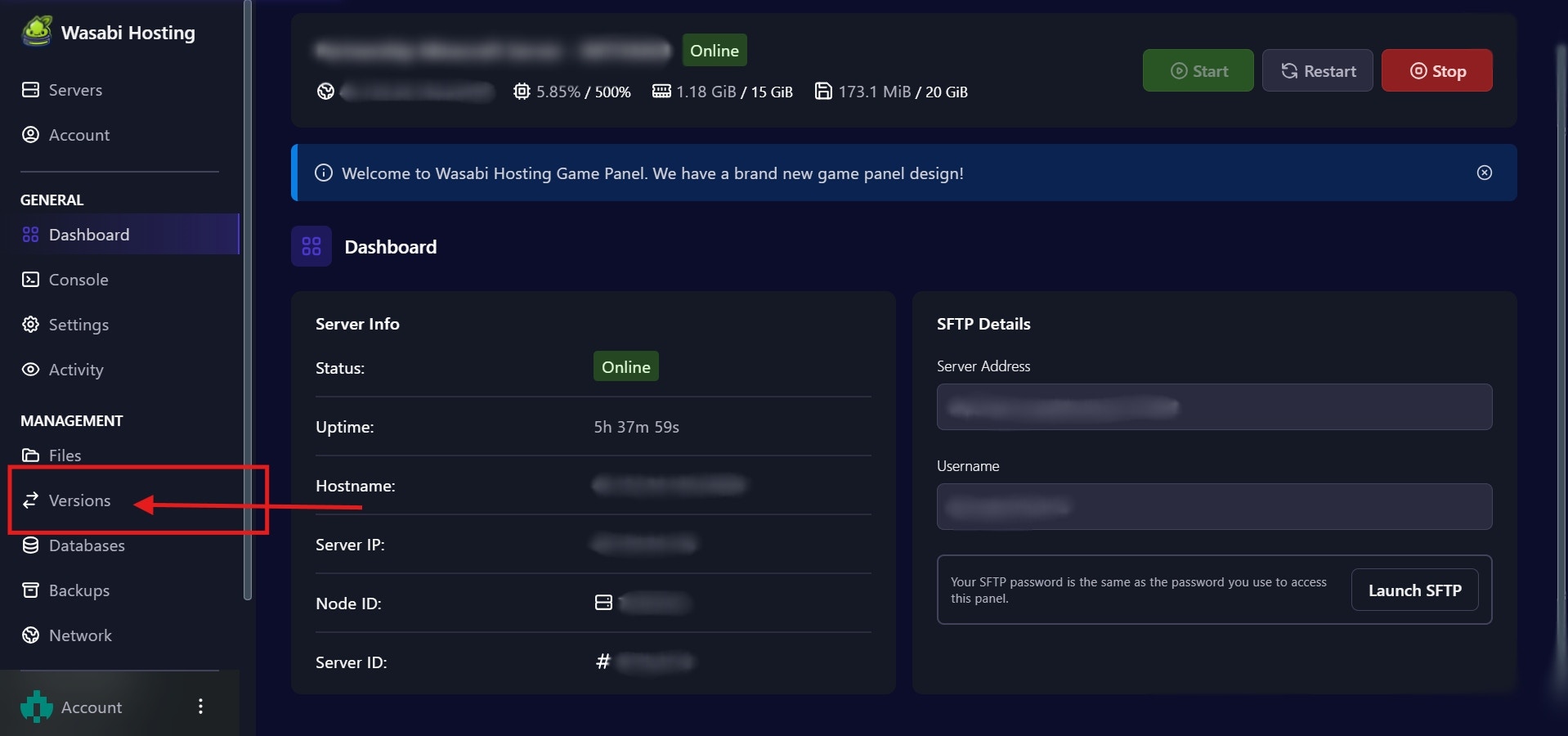
 3. In the server management section, click on the **Version Changer** tool located in the left-hand menu.
 4. In the **Version Changer** interface, you will see a list of available server versions and their releases (e.g., Vanilla, Forge, Paper, Spigot). Choose your desired version.
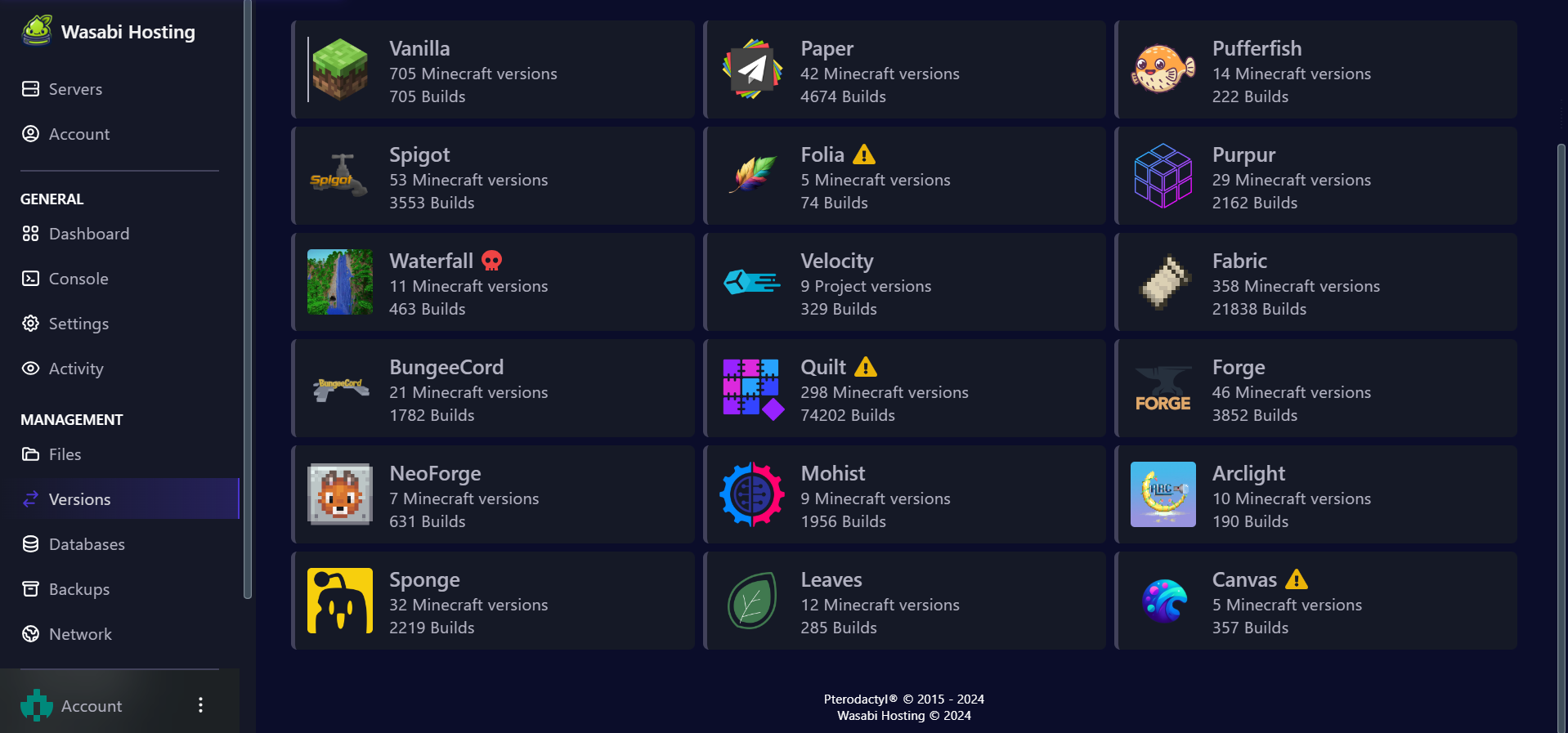 5. Once you've selected your desired version, click the **Install** button. The server will automatically stop, apply the new version, and restart with the new configuration.
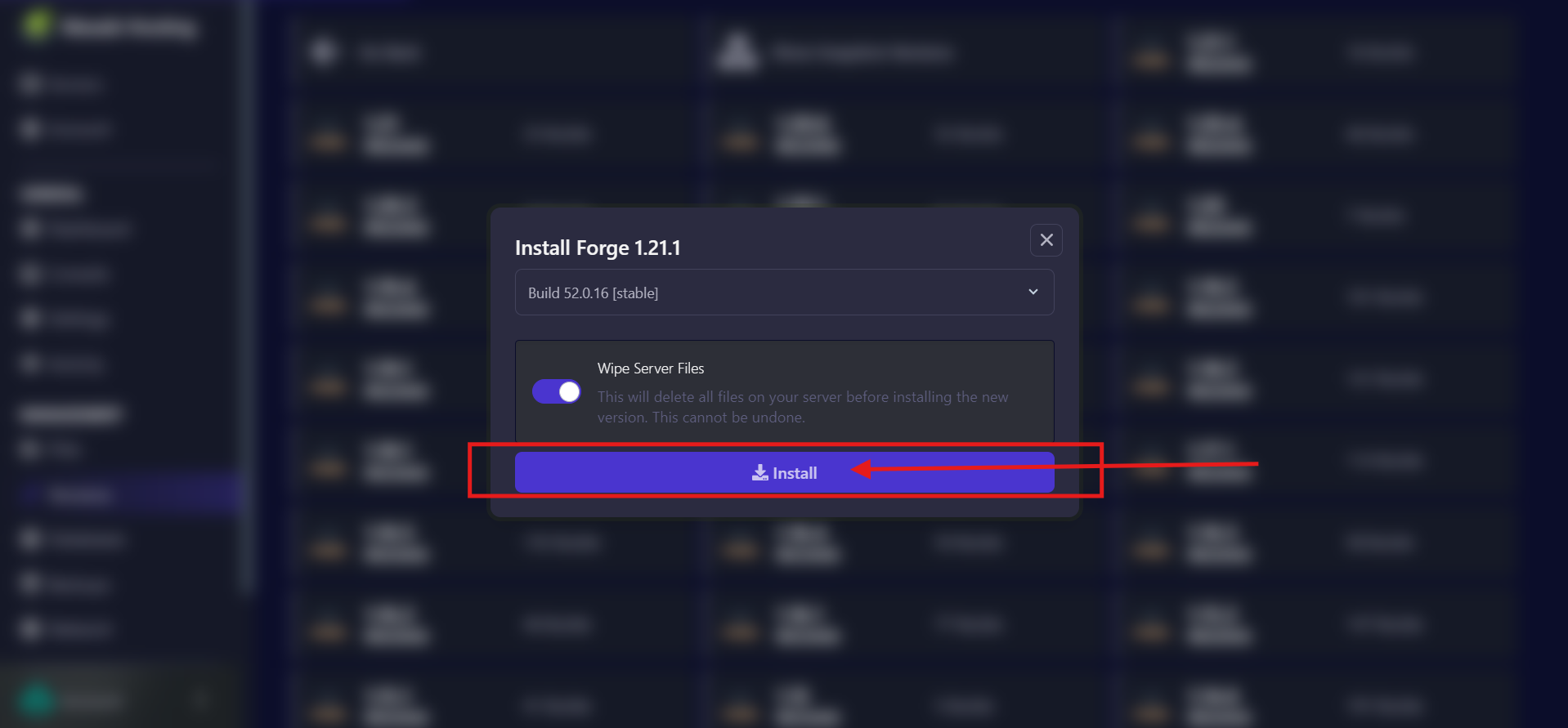 6. After the server restarts, log in to verify that the new version is running correctly.
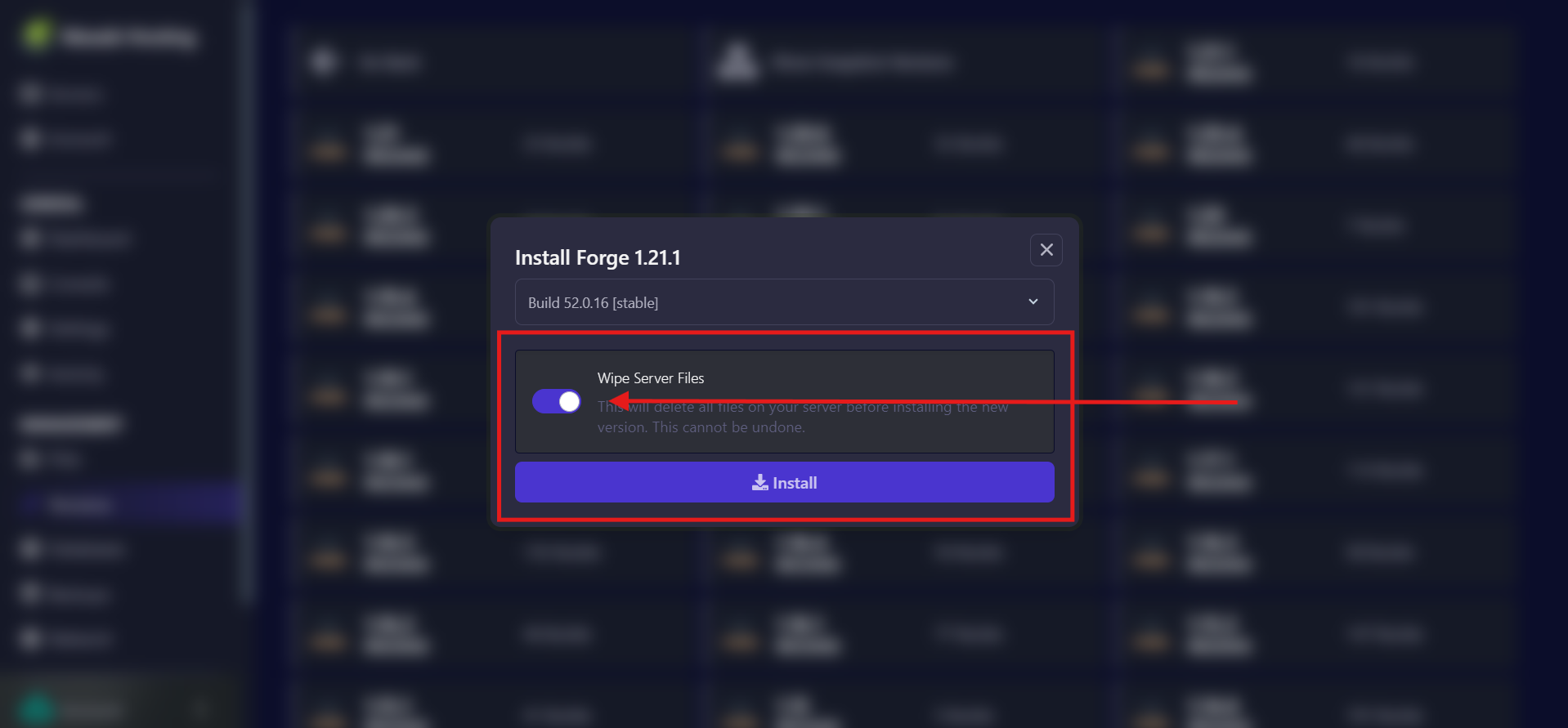 **Note**: Before changing your server's version, it's recommended to back up your server files to avoid corruption or data loss. Additionally, consider enabling the **Wipe Server Files** option before installing a new version to prevent errors.
## Optimizing Version Management Techniques
Switching to a new version of your Minecraft server can introduce potential issues. To avoid them, follow these best practices:
* **Backup**: Always back up your server before making any version changes. This will ensure your files are protected in case of an error.
* **Plugin/Mod Compatibility**: Before switching to a new version, make sure that the plugins or mods you're using are compatible with the new version to avoid conflicts.
## Conclusion
Version control can be tricky at first, but once you get the hang of it, it becomes a powerful tool for server customization and development. If you encounter any issues with our **Version Changer**, don't hesitate to contact us via a support ticket or join our Discord for assistance.
Deploy a DDoS-protected Minecraft server on AMD Ryzen hardware in about two minutes. Plans start at €2.99/month.
**Note**: Before changing your server's version, it's recommended to back up your server files to avoid corruption or data loss. Additionally, consider enabling the **Wipe Server Files** option before installing a new version to prevent errors.
## Optimizing Version Management Techniques
Switching to a new version of your Minecraft server can introduce potential issues. To avoid them, follow these best practices:
* **Backup**: Always back up your server before making any version changes. This will ensure your files are protected in case of an error.
* **Plugin/Mod Compatibility**: Before switching to a new version, make sure that the plugins or mods you're using are compatible with the new version to avoid conflicts.
## Conclusion
Version control can be tricky at first, but once you get the hang of it, it becomes a powerful tool for server customization and development. If you encounter any issues with our **Version Changer**, don't hesitate to contact us via a support ticket or join our Discord for assistance.
Deploy a DDoS-protected Minecraft server on AMD Ryzen hardware in about two minutes. Plans start at €2.99/month.